
Microsoft Windows Defender Guide 2025: Complete Setup for Home Users
Microsoft Windows Defender is a built-in security suite in Windows. Moreover, along with the security of Windows 10 and 11, it also offers protection for other operating systems like macOS, Linux, Android, and iOS.
| Platform | Protection Features |
|---|---|
| Windows | Real-time protection, threat & vulnerability management, endpoint detection & response (EDR), firewall integration, web protection, ransomware protection |
| macOS | Antivirus, web protection (malicious site blocking), EDR, vulnerability management |
| Linux | Antivirus, EDR, threat detection, command-line tools for scanning and managing alerts |
| Android | Web protection, phishing and malware detection, app scanning, device compliance for Microsoft Intune |
| iOS | Web protection (anti-phishing), device risk assessment, integration with Microsoft Intune for mobile device management |
Protect your home computer with Microsoft Defender Antivirus, which is designed to protect your data and optimize system performance.
Since it comes built into Windows, it doesn’t matter whether you are using Windows 11 or have been using Windows 10 for a long time; this built-in virus protection will help you keep your computer protected.
However, here we have tried to deliver step-by-step technical assistance so that you can configure and optimize it for better virus protection usage
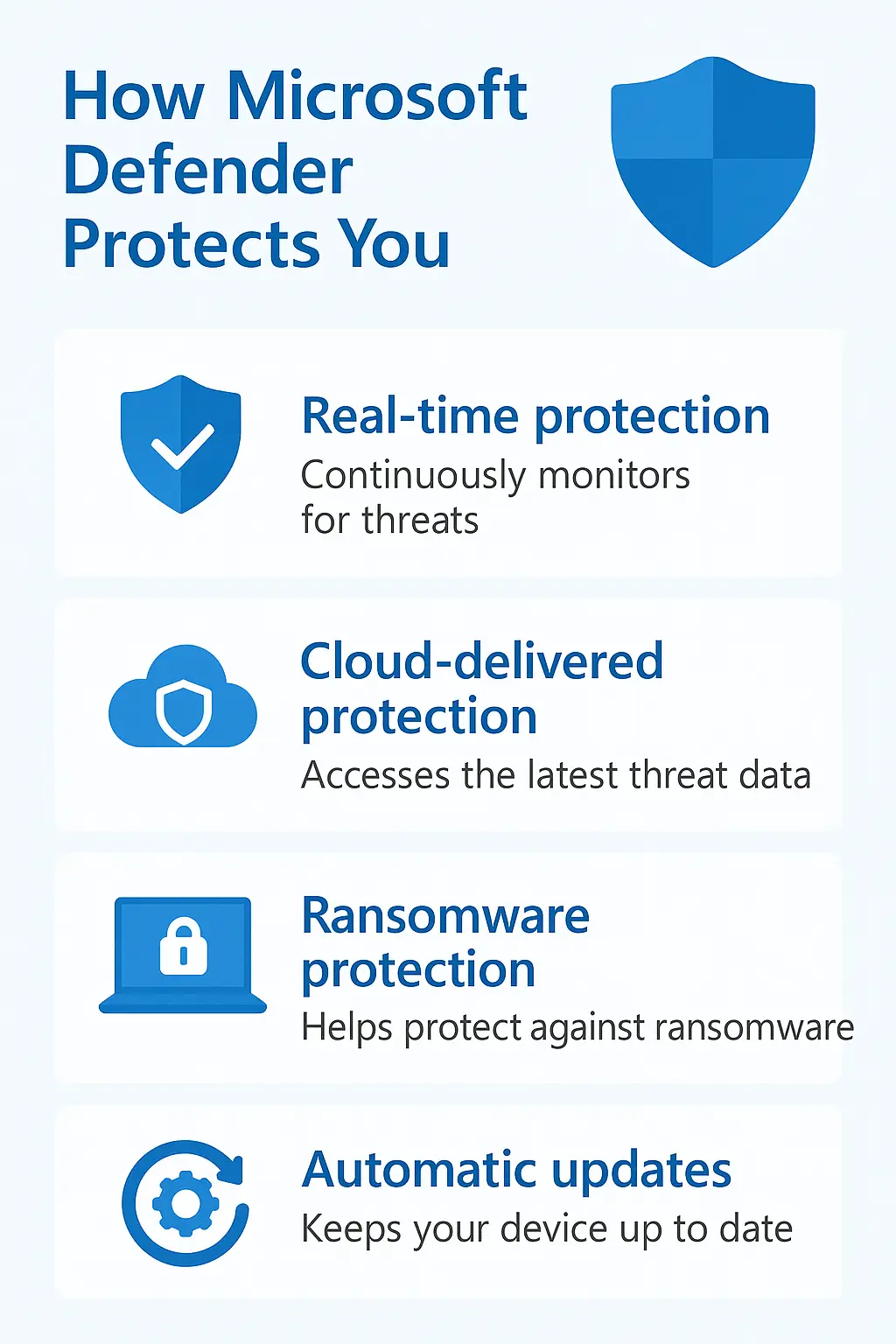
(Credit: Microsoft)
What is Microsoft Windows Defender?
Microsoft Windows Defender or Microsoft Defender Antivirus is the built-in virus protection software in Windows. In fact, it is a combination of Antivirus and Antimalware protection.
There are a number of ways Windows Defender is protecting our devices against the evolving cyber threats, and this can happen with Windows Security, Windows Firewall.
Overall, it provides complete antivirus protection that provides real-time protection, ransomware and other evolving threats by continuously scanning files.
Moreover, this is pre-installed security on Windows 10 and 11, which updates automatically to keep the device protected.
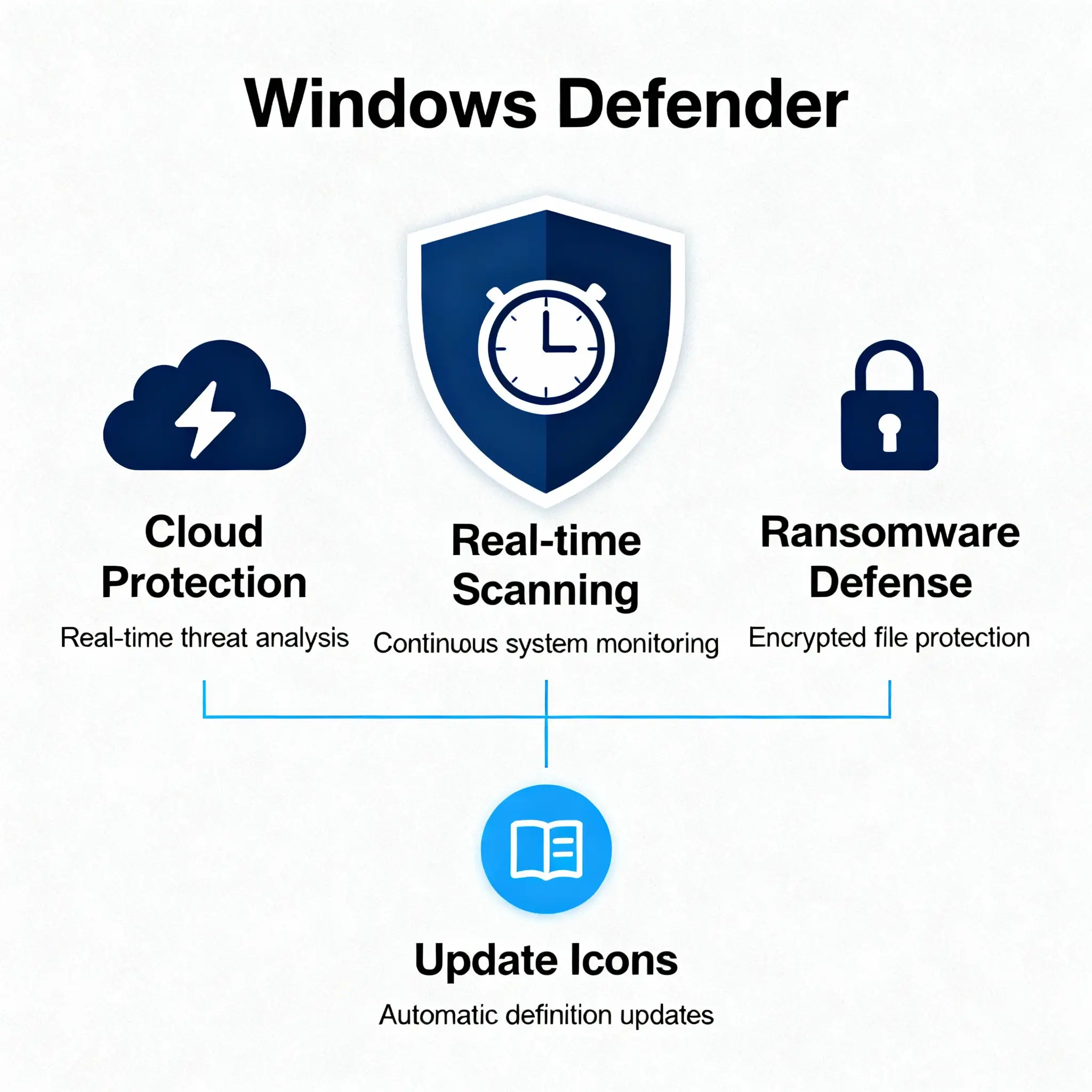
Why Defender Antivirus Matters for Home Users?
Imagine this: you are checking your email on the computer and have just received a new email, which looks pretty important to you because it’s coming from the bank. The subject line is something very urgent, and you click on the link without realizing that it’s really from the bank or important to you!
So, what happens next?
Since you clicked on the link, in a second, your device could be compromised by malware, and the sensitive data is at risk. Furthermore, your files can be locked by a ransomware virus. Cyber threats are emerging day by day.
That’s why Windows Defender matters to you. Imagine, how nice it would be if you had a built-in security software that would protect your computer from any kind of virus.
In facts, Windows Defender helps you keep your computer safe. Although, it looks like a simple antivirus, but it’s a complete security suite which designed to protect your device from cyberthreats.
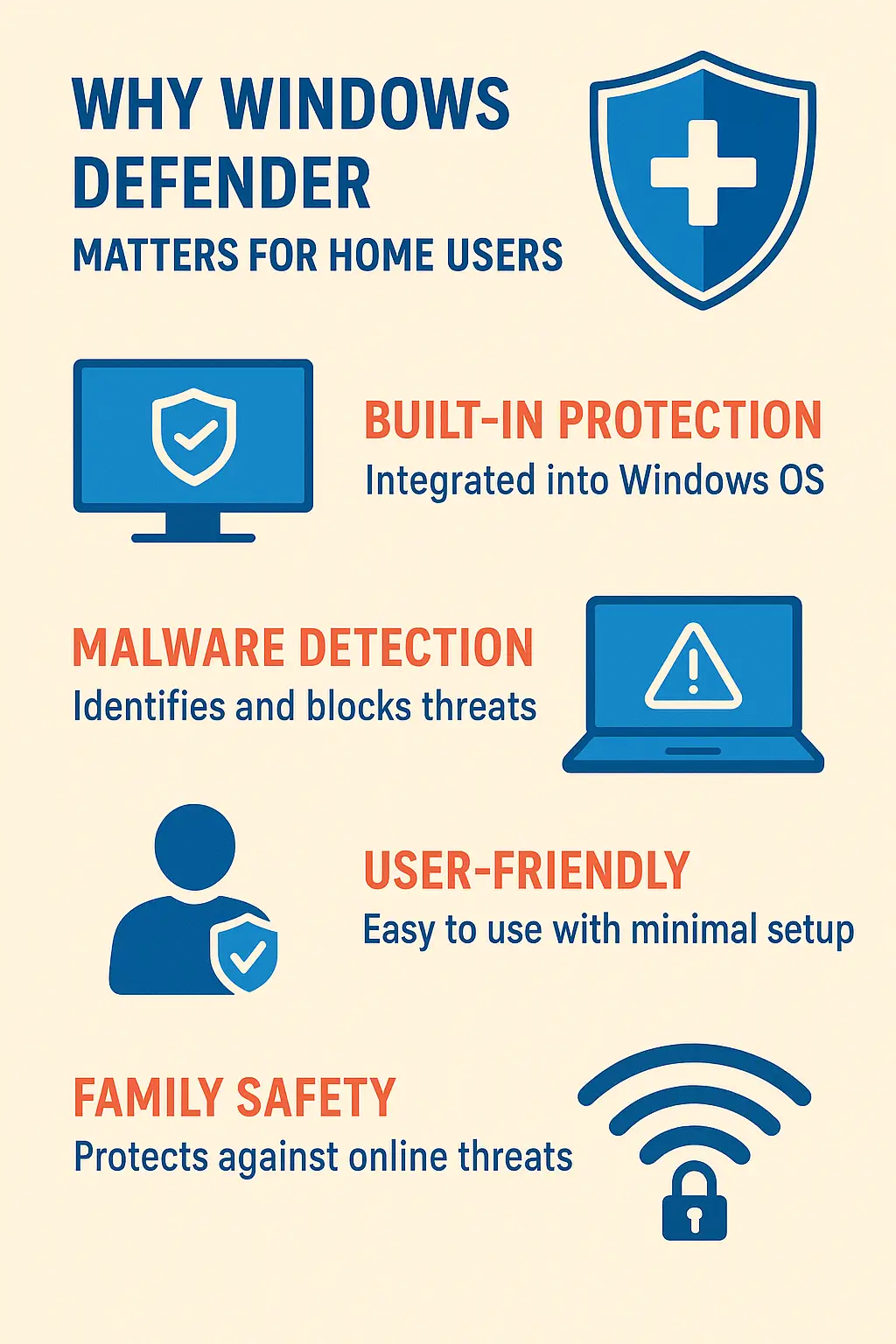
Key Security Features Every Home User Should Know
Microsoft Defender protects your computer around the clock and is designed to run silently to protect your device without interrupting you at work.
However, as a user, you should know its capabilities so that you can use it at its best performance. Here are some key features that you should know about your security software:
Real-time Protection
This feature keeps a close eye on activity. For example, you are downloading something from the internet, but are not sure whether it is safe or not.
The real-time scanning steps in and start scanning the downloaded files to keep your computer safe.
It analyzes the downloaded file behavior and compares it with the database; if it finds something suspicious, it blocks it immediately.
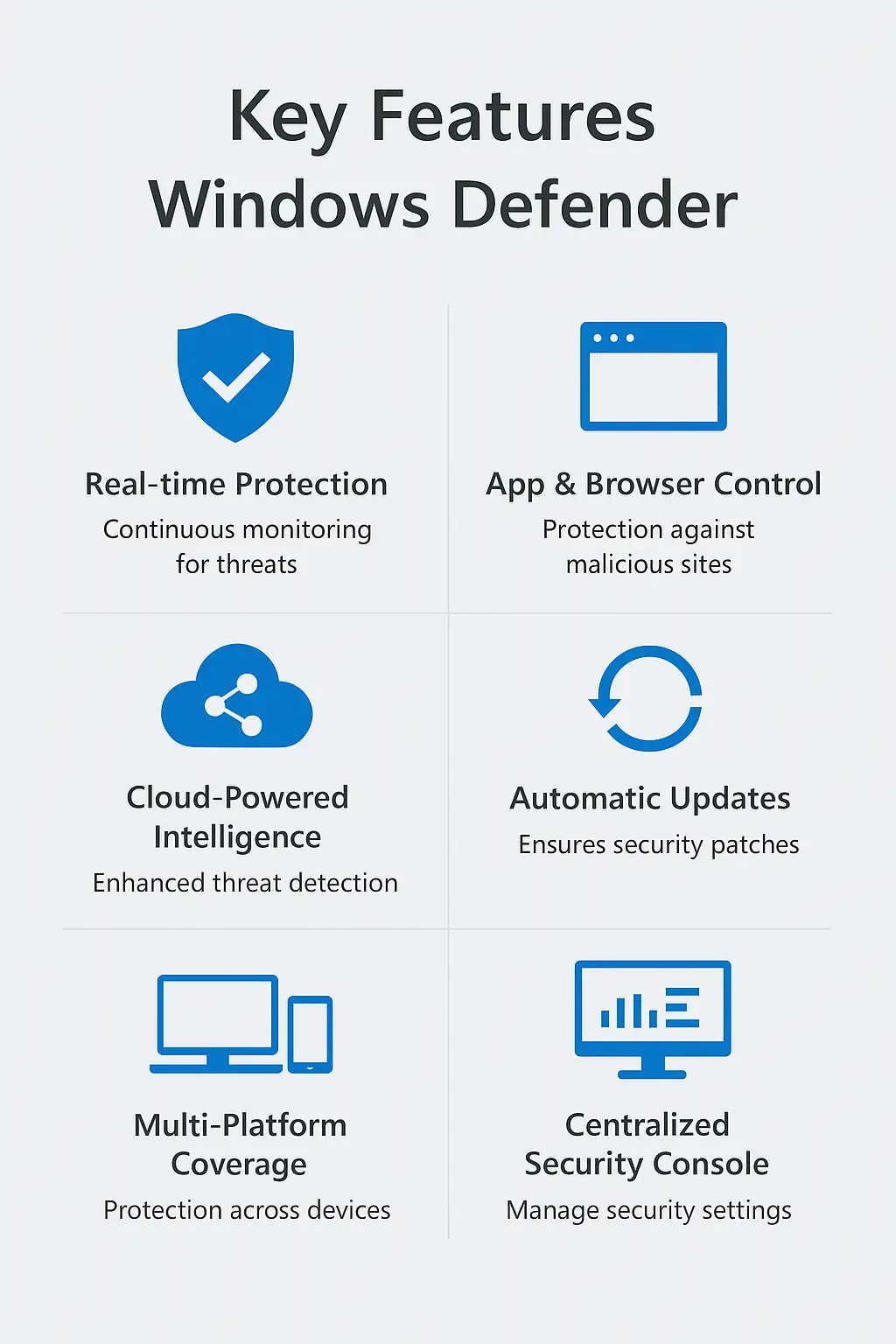
App & Browser Control
It is not necessary that all viruses come from downloaded files; in fact, some dangerous viruses are found online, such as some websites that are not secure, unsecured apps, and sometimes even malware gets installed in your system through ads.
The App & Browser Control feature is designed to protect you from these threats, and it keeps the browser under control.
This feature scans websites and apps and evaluates them, and blocks them before they interact with you.
SmartScreen features prevent you from clicking on a link that might lead you to a malicious website, preventing potential phishing attacks or malware installation.
Cloud-Powered Intelligence
Usually, antivirus software detects threats by comparing them with predefined virus definitions.
Cybercriminals are constantly changing and advancing their techniques. Therefore, Windows Defender software uses cloud-powered intelligence to stay one step ahead.
Through AI or machine learning, it can identify and block a wide range of threats.
Due to cloud-powered intelligence, it detects new and unknown threats faster than traditional antivirus software.
Besides, due to its cloud-based protection, it remains up-to-date, which makes it easier to recognize zero-day attacks.
Ransomware Protection
Ransomware is one of the most harmful sorts of malware. It encrypts your files and asks for ransom to unlock them; it’s a kind of holding your entire system hostage.
Microsoft Defender uses AI-powered Intelligence and applies multiple security layers to protect your data.
With Controlled Folder Access, Defender Antivirus stops unauthorized access from making changes to major files. As a result, it won’t be able to modify the protected folder without your permission.
Moreover, Defender Antivirus uses a behavioral detection method to locate the ransomware activity before it damages your PC.
Firewall & Network Protection
We are in the internet world, where we are connected to everyone; this makes the network constantly under attack by cybercriminals. They target all types of users. They use malicious programs to access your sensitive data.
Microsoft Defender’s built-in firewall secures your network. It filters both incoming and outgoing traffic, and allows only safe connections and blocks suspicious connections.
Defender alerts you if something suspicious is trying to access your device.
As a result, whether you are working at home or using public Wi-Fi, Microsoft Defender Firewall keeps your network protected.
Multi-Platform Coverage
Microsoft Windows Defender was initially designed for Windows users, but now it is not limited to a single operating system platform. Microsoft Defender consistently develops, and as such, it secures multiple operating systems like Windows, macOS, Linux, Android, and iOS.
It means Microsoft Defender (part of the Microsoft Defender for Endpoint suite) is now designed for organizations and individuals and secures all their devices regardless of platform.
| Platform | Protection Features |
|---|---|
| Windows | Real-time protection, threat & vulnerability management, endpoint detection & response (EDR), firewall integration, web protection, ransomware protection |
| macOS | Antivirus, web protection (malicious site blocking), EDR, vulnerability management |
| Linux | Antivirus, EDR, threat detection, command-line tools for scanning and managing alerts |
| Android | Web protection, phishing and malware detection, app scanning, device compliance for Microsoft Intune |
| iOS | Web protection (anti-phishing), device risk assessment, integration with Microsoft Intune for mobile device management |
Centralized Security Console
The Centralized Console in Microsoft Defender is a unified management interface that allows administrators and security teams to monitor and manage from a single location instead of checking every individual PC or server.
This entire suite is a part of Microsoft Defender Endpoint Suite, which covers antivirus, threat detection, vulnerability management, and response.
Key Features:
1- Centralized Threat Monitoring
2- Real-Time Threat Intelligence
3- Device & Endpoint Management
4- Incident & Response Management
5- Reports & Analytics
6- Integration with Microsoft 365
Where to find Windows Security?
Windows 11/10: Open “Windows Security” from Start or Settings > Privacy & Security > Windows Security. The “Virus & threat protection” section is the core antivirus panel.
Optimize & Protect Your PC
Windows Defender vs Premium Antivirus: 2025 Test Results Compared
A simple antivirus software that has traveled a long and uncertain journey has now become a trusted security software built into Windows. Yes, along with Windows 10 and 11, provides protection for many different antivirus platforms today.
However, self-dependent labs AV-TEST and AV-Comparatives provide reliable information about how it will compete with paid antivirus software in 2025.
Let’s understand it and find out if it’s enough to protect your device, or if it’s better to opt for paid antivirus software.
Do You Still Need a Third‑Party Antivirus, or is Microsoft Windows Defender Good Enough?
That’s a very basic question that always arises in our minds: whether free antivirus software is good enough to protect the device. To use built-in Defender security software or still need paid antivirus, depends on our usage. However, choosing the best antivirus software is a very tough task.
In our experience, we found that most home users use Microsoft Defender, which works well for their security, and no performance impact, and has no ads.
On the other hand, we have some professional users who do some sensitive work, who need identity theft protection, VPN, password manager, and they may add third-party security software.
For businesses, there is Microsoft Defender for Endpoint offers enterprise-grade security features like endpoint detection and response (EDR), threat hunting, and security baselines.
Overall, it all depends on our usage. Understand the work you do on your digital device and choose the best security software wisely.
Quick best practices
- Keep Windows and Defender definitions up to date (updates are automatic).
- Enable Controlled Folder Access for key directories (Documents, Pictures, project folders).
- Turn on SmartScreen in both Windows and your browser.
- Use a standard (non‑admin) account for daily work when possible.
- Periodically review Protection history in Windows Defender Security and run a full scan once in a month.
- Back up important files and get OneDrive version history to recover from ransomware.
About Antivirus Support Team
The Antivirus Support Team has over 12 years of experience in helping with antivirus software support and computer technical troubleshooting. We are trained in real-world issues users face daily - from installation errors, activation errors, virus & malware removal, to performance optimization and update troubleshooting.
Our mission is to help home and non-tech users, because we know that security shouldn’t be confusing. Every blog we publish in practical experience and up-to-date knowledge of cybersecurity trends.
Trust the Antivirus Support Team to guide you safely in the digital world.